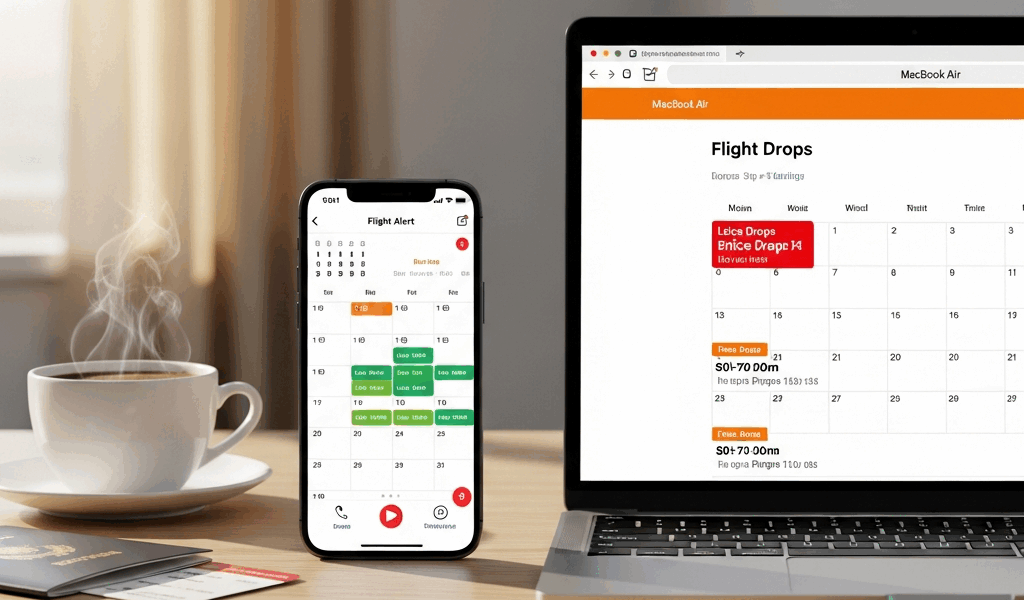
Why Your Google Flights Price Alerts Are Probably Not Working
Google Flights price tracking is harder than it needs to be with all the misinformation flying around. Everyone assumes they set it up right. They didn’t.
As someone who books four to six international trips a year on a teacher’s salary, I learned everything there is to know about squeezing value out of flight search tools. Today, I will share it all with you.
Here’s what actually happened to me in 2022: I tracked a round trip from Chicago to Lisbon — base price sitting around $740 on United. The price dropped to $560 at some point in late October. I found out by accident, three weeks after it bounced back up, when a coworker mentioned she’d grabbed the same route for cheap. My alert? Never came. Turns out I had three separate problems buried in my setup, and any one of them would’ve been enough to kill the notification entirely.
There are three main culprits killing your Google Flights price tracking:
- Gmail spam filters swallowing your alerts — Google sends them from a noreply address, and aggressive filter rules hide them before you ever see them.
- Price tracking silently expiring after 90 days — Google doesn’t warn you. The tracking just stops. Most people don’t figure this out until the damage is done.
- Tracking set on the wrong date range or route — You track one-way instead of round trip, or your flexible dates are too narrow, and the actual price drop falls outside your parameters entirely.
Fix these three things, and your alerts will actually reach you when it matters.
How to Set Up Price Tracking the Right Way
Start on desktop. Mobile technically works, but the interface is compressed and you’ll miss things — at least if you’re doing this for the first time and want to get every setting right.
Go to Google Flights, search your route, and pull up a flight you want to track. Look for the price box on the right side of the screen. Below the price, there’s a bell icon next to “Track prices.” Click it. The icon turns blue. That’s your confirmation. But don’t stop there — this is exactly where most people fumble and walk away thinking they’re covered.
Check your date settings. This part is critical. Fixed dates — say, March 15 to March 22 — mean your tracking is locked to those exact days. A price drop on March 14? Google stays quiet. It won’t alert you outside your search window, full stop.
If your schedule has any flexibility at all, re-run your search with a wider date range. Use the calendar feature to open it up — maybe March 10 through March 25 if you can shift things around. Track that search instead. Your alerts will now fire for price movement across that entire window, which dramatically increases your chances of catching something useful.
For round trips, track the round trip. Don’t track outbound and return separately. I made this mistake once and ended up with conflicting alerts, no clear picture of which drop actually mattered, and a mild headache. Google’s system handles one-way segments differently, and splitting them creates real blind spots.
On mobile, the process is nearly identical — search your flight, tap the price, find the bell icon in the header. It’s smaller than it should be and genuinely easy to miss. Tap to enable tracking, then double-check your date range before you confirm.
After setup, open Gmail and look for the Google Trips section in the left sidebar — sometimes it’s labeled “Updates.” Your tracked flight should appear there. That’s your proof tracking is active and connected to your account. No listing there means something went wrong during setup.
How to Make Sure You Actually Receive the Alerts
This is the part you actually came for.
Gmail filters destroy more price alerts than any other single cause. Google sends all of them from noreply@google.com — and if your spam settings are even slightly aggressive, or if that address somehow gets flagged, those emails disappear into a folder you haven’t opened since 2019.
Whitelist noreply@google.com right now. Go to Gmail settings, hit Filters and Blocked Addresses, create a new filter for that sender. Set it to skip spam, apply a label, or route it straight to your inbox — whatever you prefer. The exact steps vary slightly depending on your email client, but the goal is simple: make sure those messages actually land somewhere you’ll see them.
While you’re in there, check your “Updates” tab. Google Flights alerts sometimes route there instead of your primary inbox. A quick filter can redirect them to your main folder if that’s happening to you.
One thing that surprises a lot of travelers: Google doesn’t alert you for every price movement. That’s not how it works. The threshold sits somewhere around a 10 to 15 percent drop, sometimes higher depending on the route and base price. A $5 dip on a $200 ticket won’t trigger anything. A $30 drop on a $300 ticket probably will. So if you notice a small price change during a manual search and wonder why your phone stayed silent — that’s why. It’s intentional. Otherwise you’d be drowning in notifications over fluctuations that don’t actually matter.
When to Use Price Tracking vs. When to Just Book
Price tracking isn’t always the right move. Sometimes you should just buy the ticket.
Google Flights shows three price indicators: “low,” “typical,” and “high.” If you see “low,” stop waiting. Book it immediately. Historical data behind that label suggests the price won’t drop further, and sitting on it risks losing the seat at that rate altogether. You might save $15 if the algorithm is wrong. More likely you’ll pay $40 more next week.
“Typical” or “high” with a travel date six or more weeks out? That’s when tracking makes sense. You have enough runway for a meaningful drop, and the risk balance actually works in your favor.
For flights two to four weeks away, track only if the price reads “high.” Already marked “low”? Skip it and book. And last-minute flights — anything inside two weeks — almost never drop. Prices climb as departure approaches. Tracking them is genuinely a waste of your time and mental energy.
Better Alternatives If Google Alerts Keep Failing You
If Google Flights tracking keeps letting you down despite all these fixes, layering in a backup system makes sense. Keep Google as your primary tool — it’s still the most reliable option, as flight tracking requires solid data infrastructure. That is because Google’s flight index pulls from more sources than most competing platforms. But don’t rely on it alone.
Hopper uses predictive analytics to forecast whether a price will rise or fall and flags specific booking windows. It’s more aggressive than Google’s approach — sometimes annoyingly so — but it catches things on volatile routes that Google’s system quietly ignores. Use it to cross-check, not replace.
Kayak price alerts work similarly to Google’s but occasionally surface price movements on regional or niche routes that slip through Google’s threshold. Set them up as a secondary layer. Takes maybe four minutes to configure.
Manual weekly rechecks sound tedious. They work anyway. I’m apparently a Sunday-morning-coffee-and-flight-search person, and this habit works for me while pure alert reliance never really did. Set a calendar reminder. Search your route again. See what changed. You’ll catch drops that never triggered a notification, and you’ll stay locked in on your trip in a way passive alerts don’t really encourage.
The combination — proper Google Flights setup, one backup tool, occasional manual checks — eliminates almost every missed deal worth caring about. You won’t catch every single price movement. But you’ll catch the ones that actually matter. Don’t make my mistake and assume the bell icon alone has you covered.


Leave a Reply